palhelm

THE PANEL

Your whole server, in one panel.

Palhelm watches your server three ways: the live player list, the remote console, and the world save. Nine screens, one login. Nothing it shows can change your world.

9 screensone login
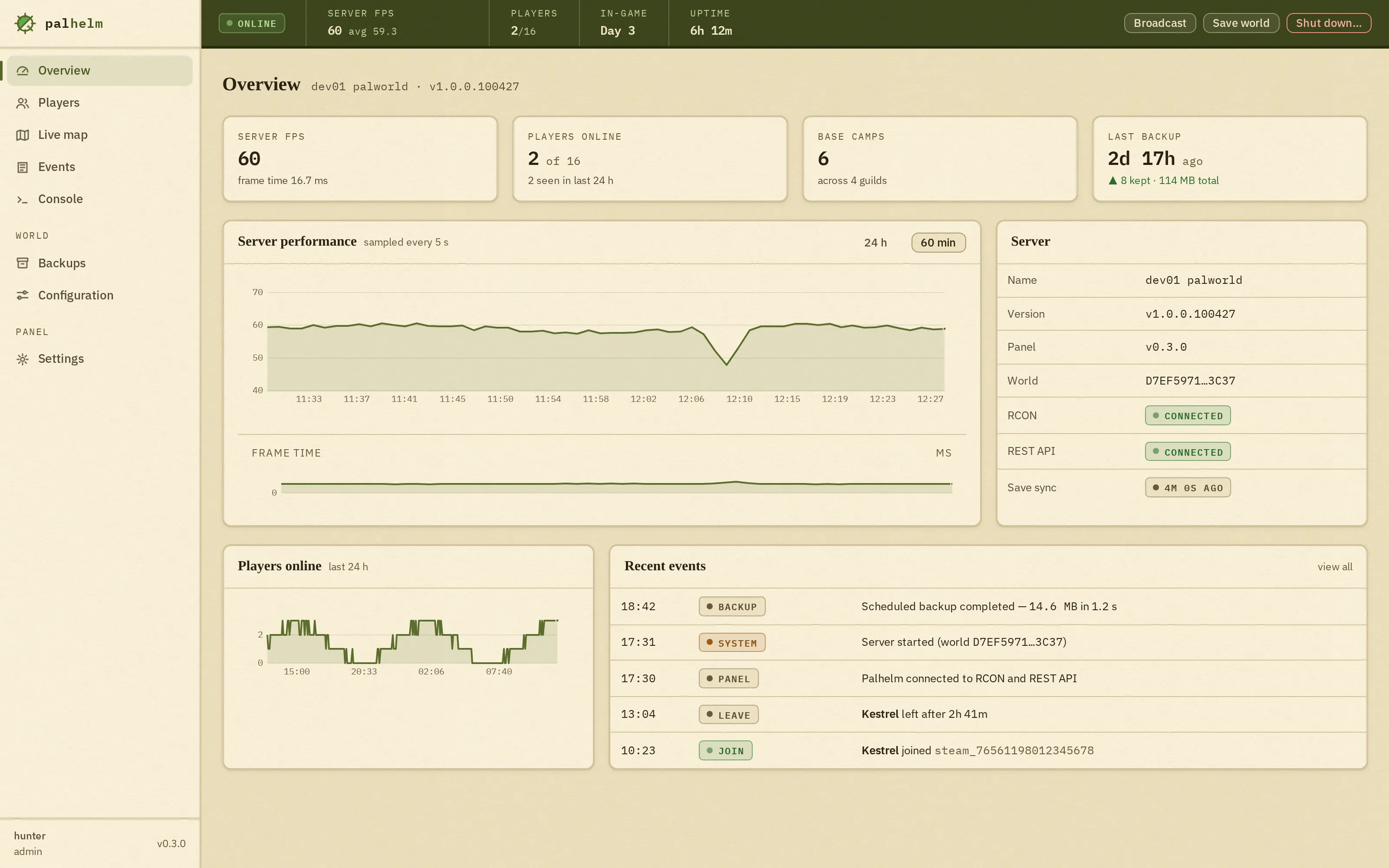
The Palhelm dashboard in the light theme: charts for FPS, frame time and players online over time, health for each connection, base-camp count, in-game day and uptime.
LIGHT
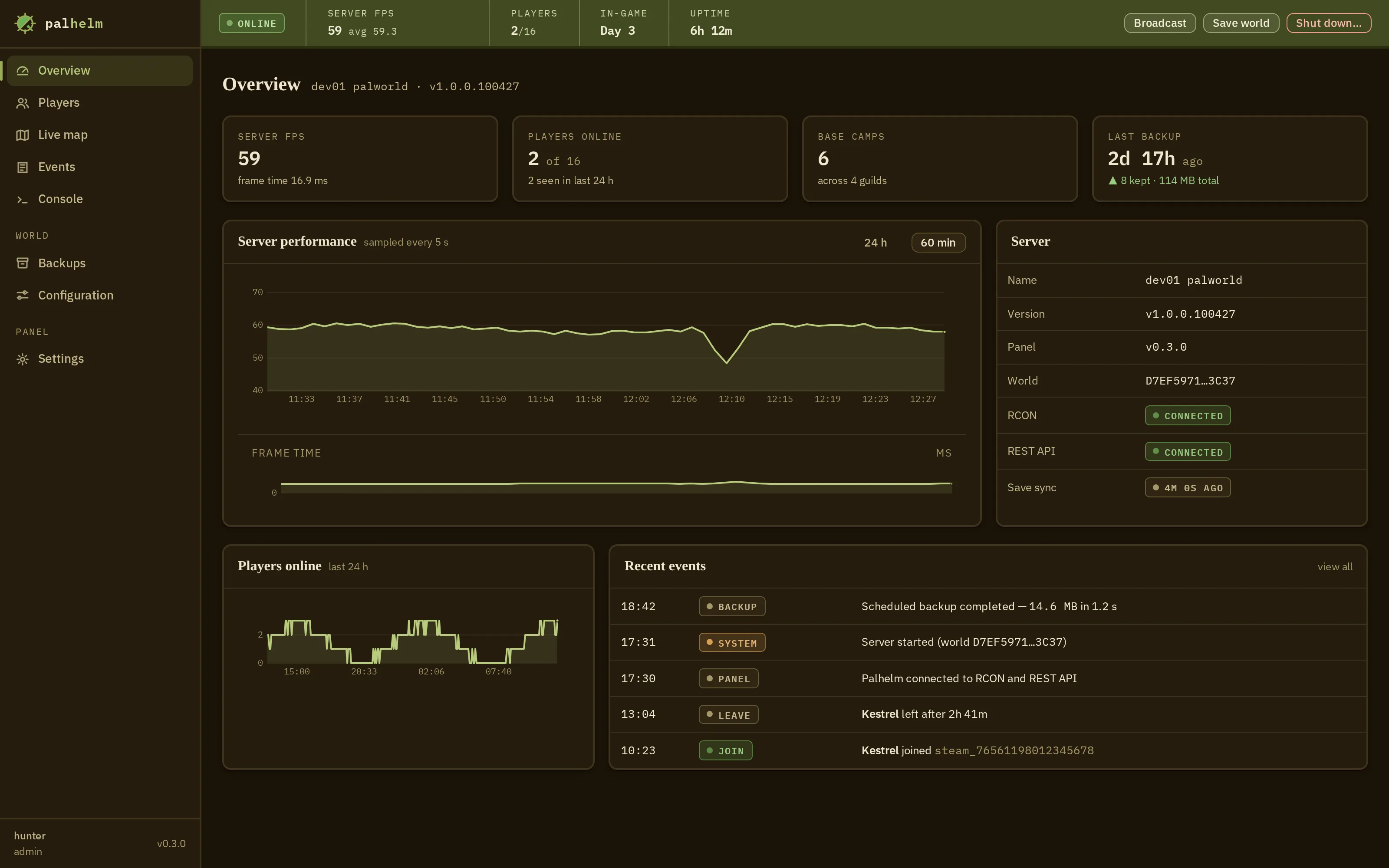
The same dashboard in the dark theme: the identical layout rendered in warm near-black with olive charts.
DARK
FIG. 02The dashboardthe same screen, light and dark

SCREEN 01 · DASHBOARD

Charts with history, not just numbers.

FPS and players online are drawn over time, so you can spot the dip that happened overnight, not just the number right now. Connection health sits on the same screen.

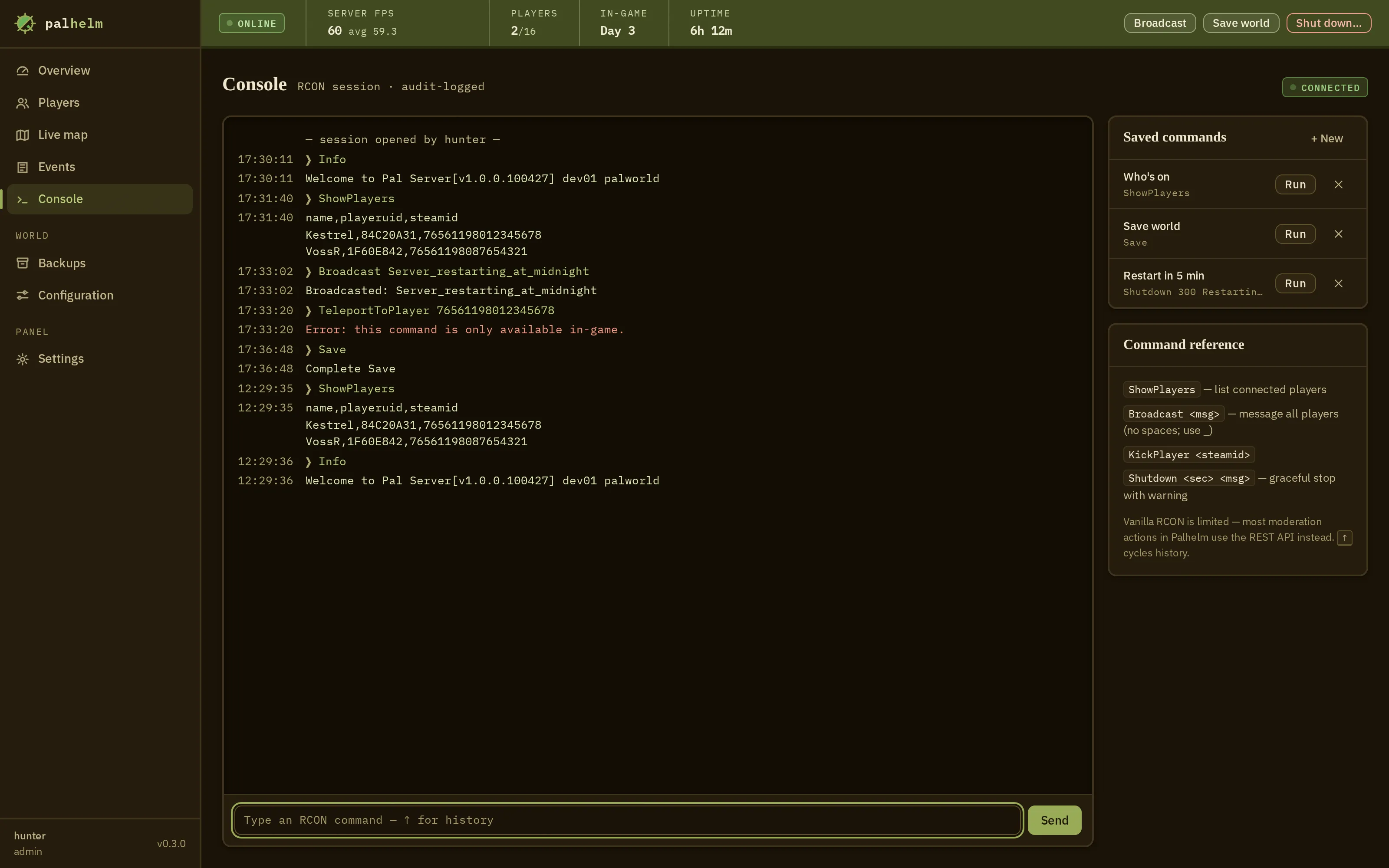
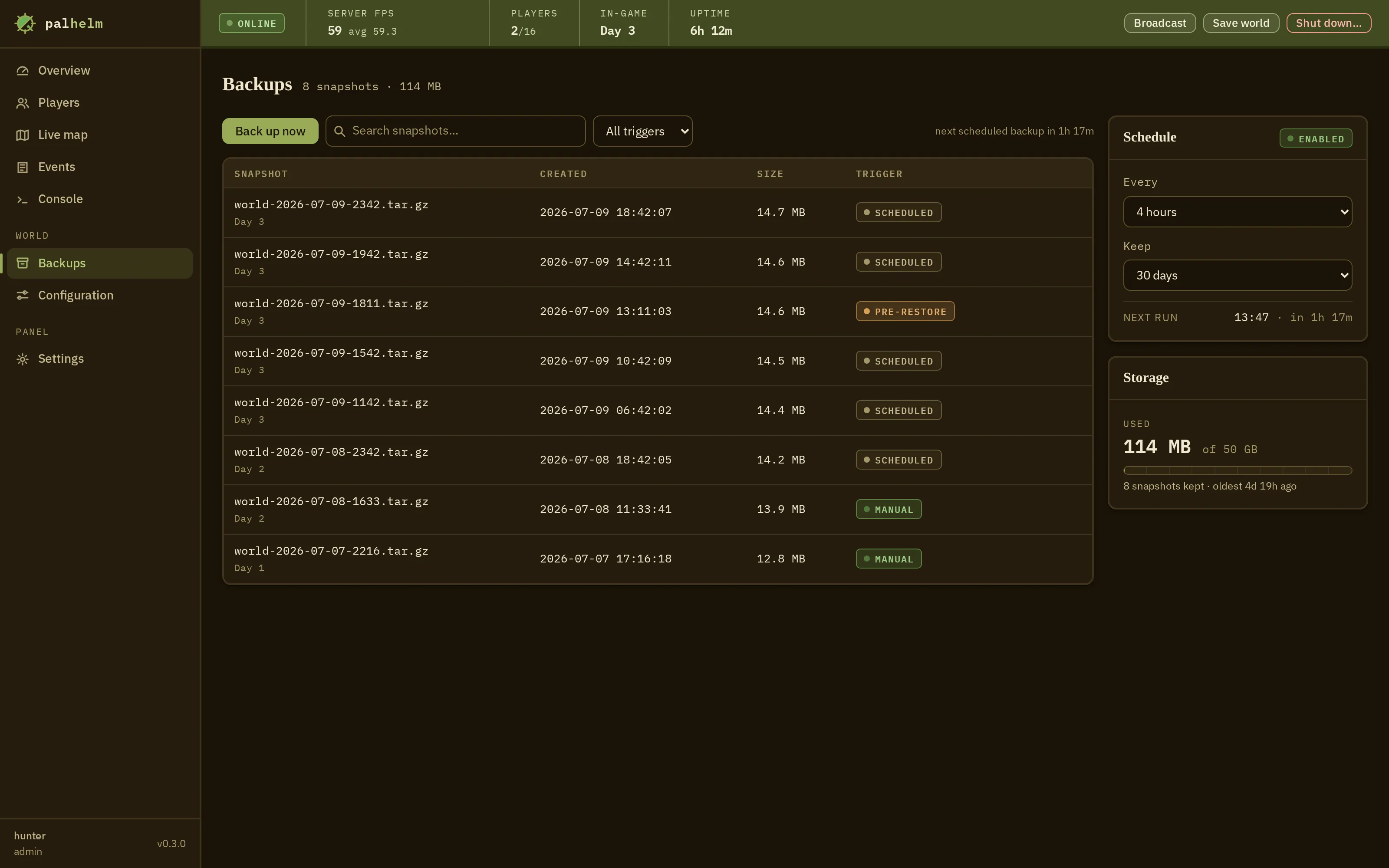
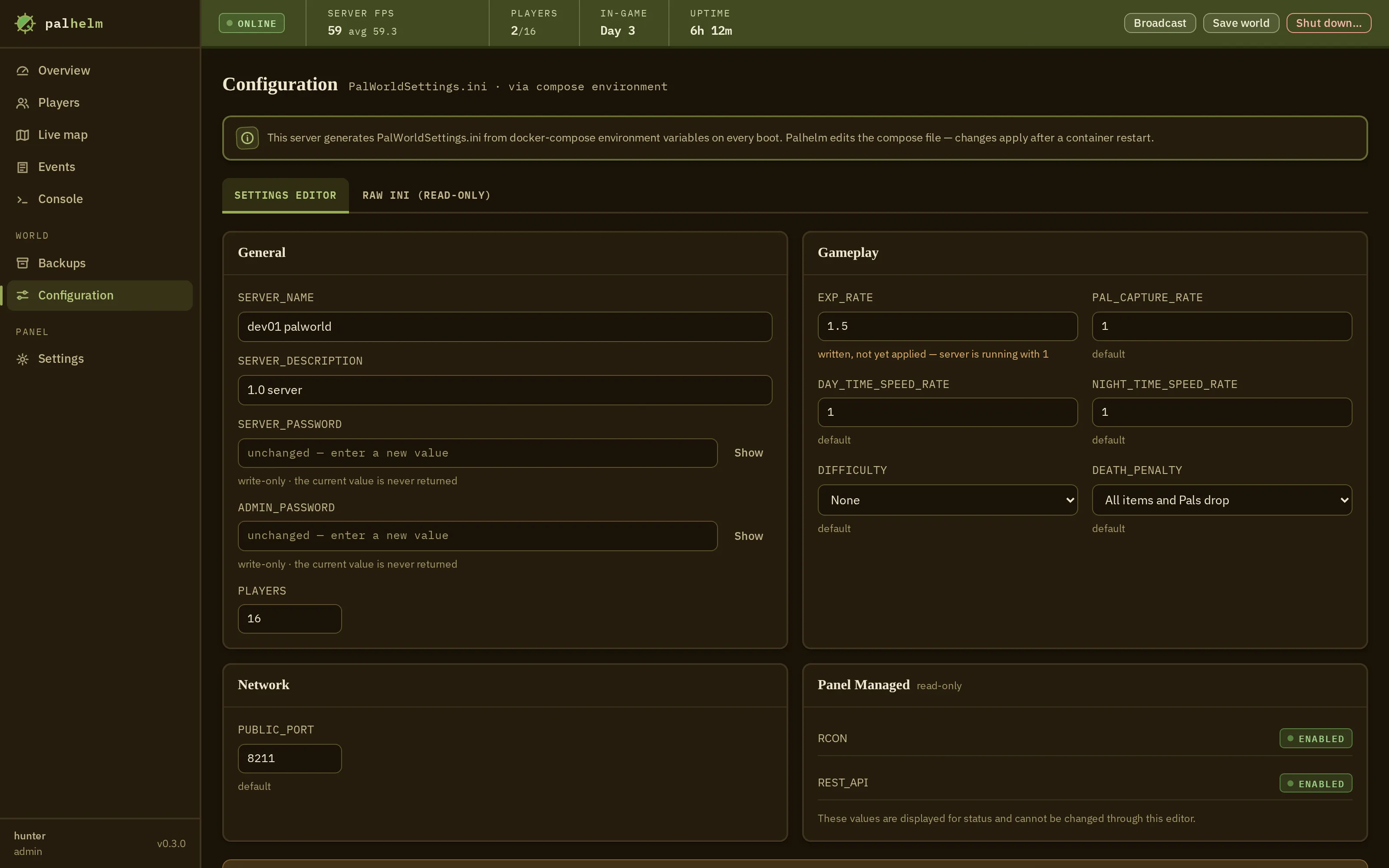
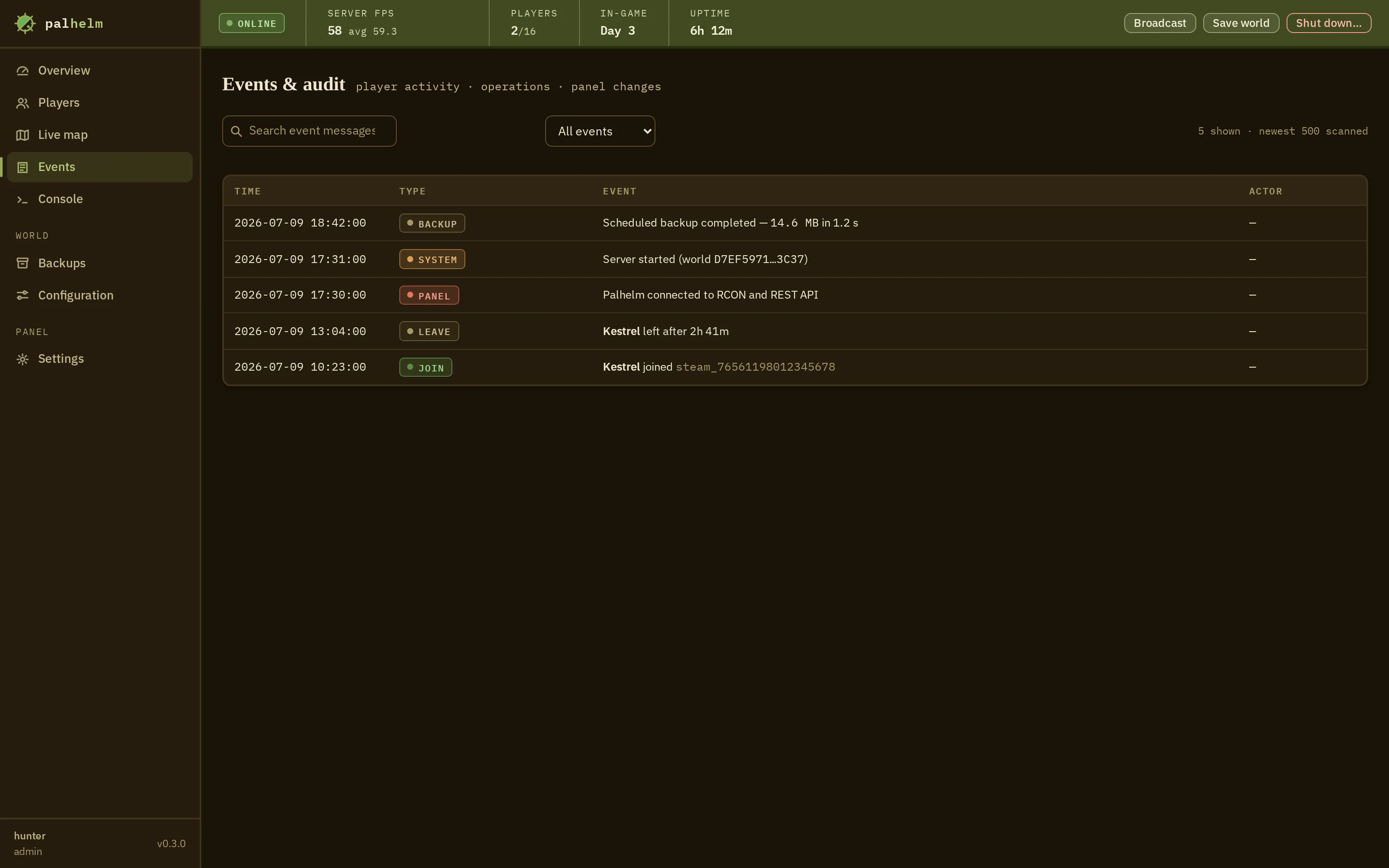
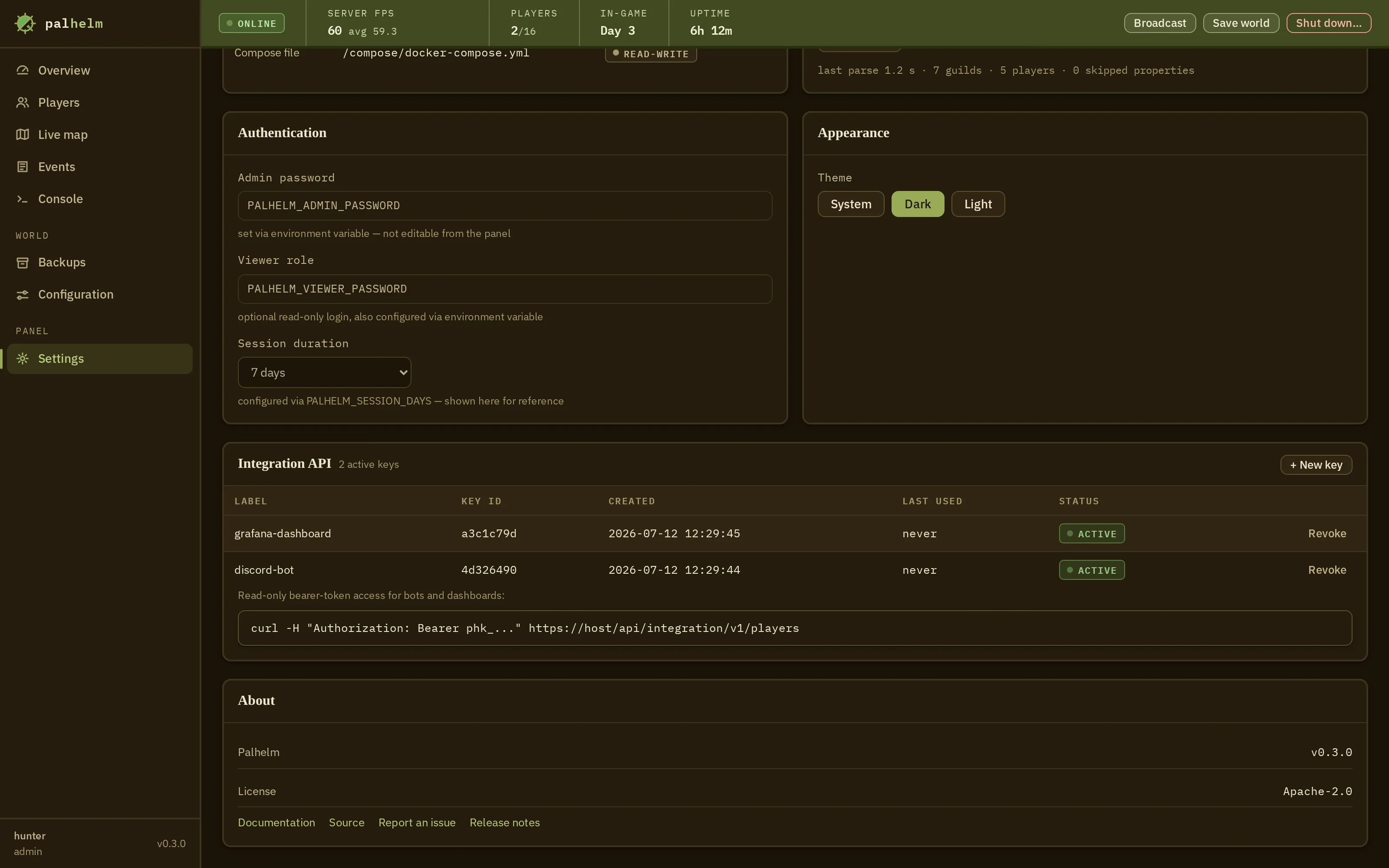
Switch the toggle in the top bar and the panel switches to a warm dark theme. Every screen has both themes.
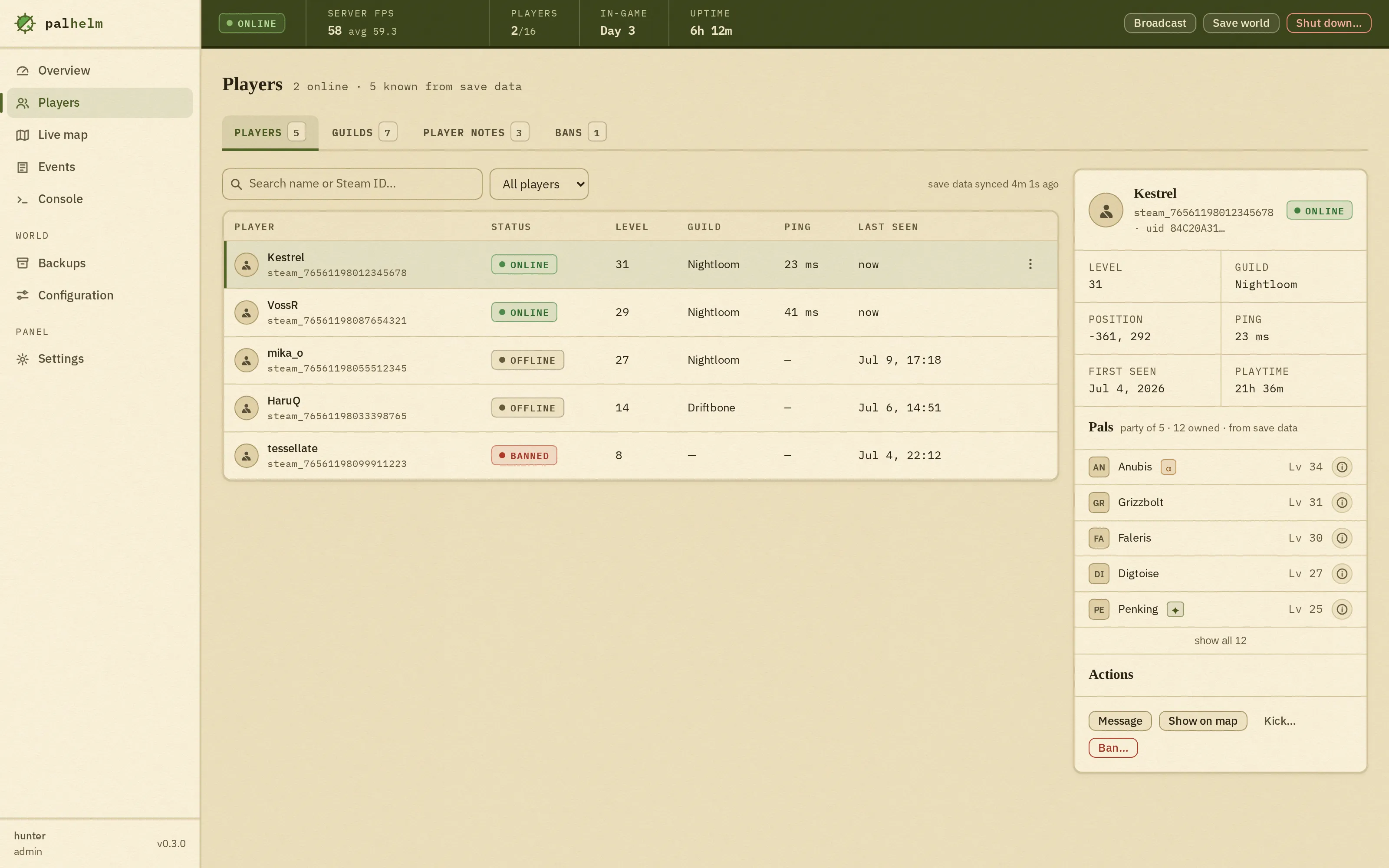
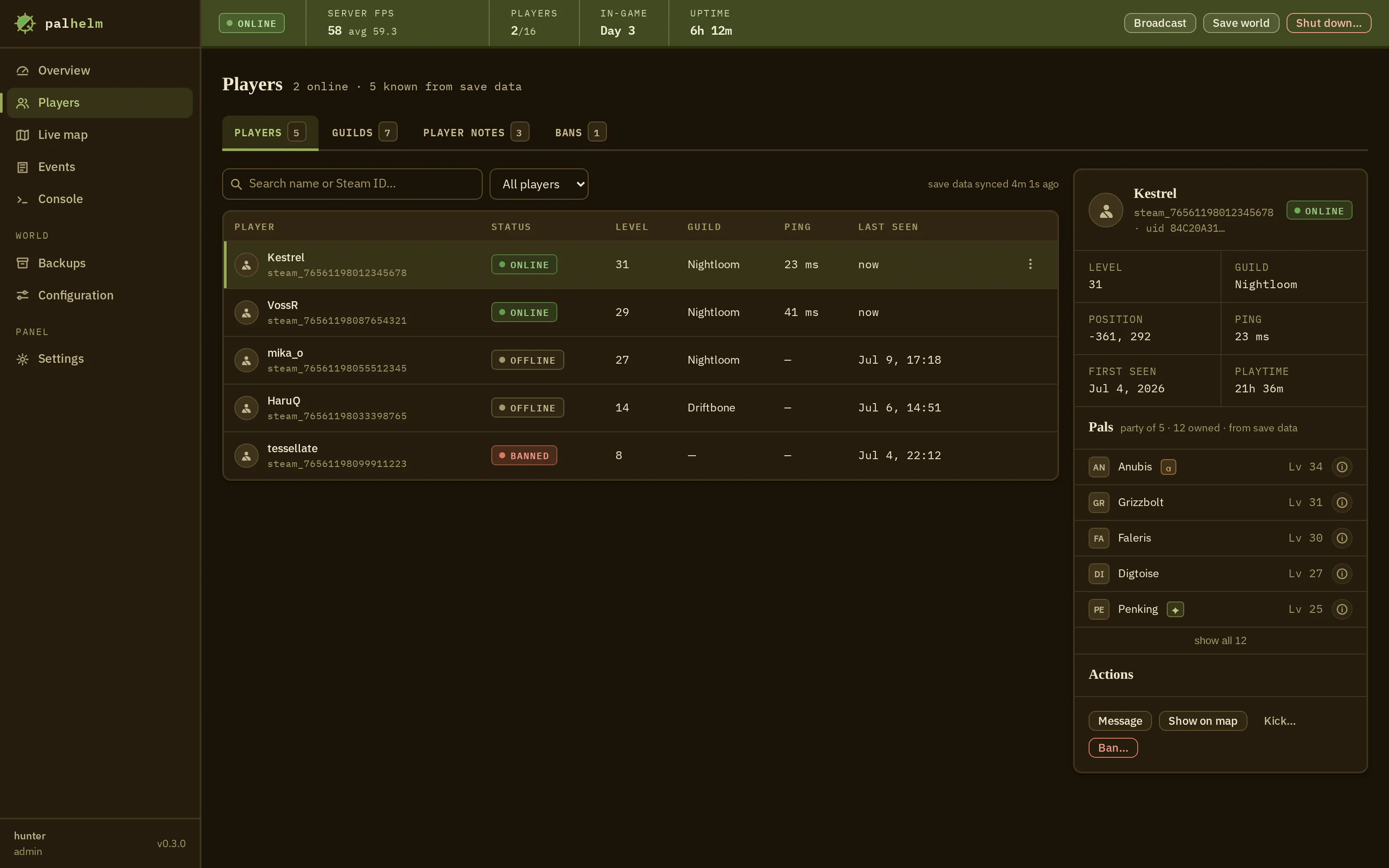
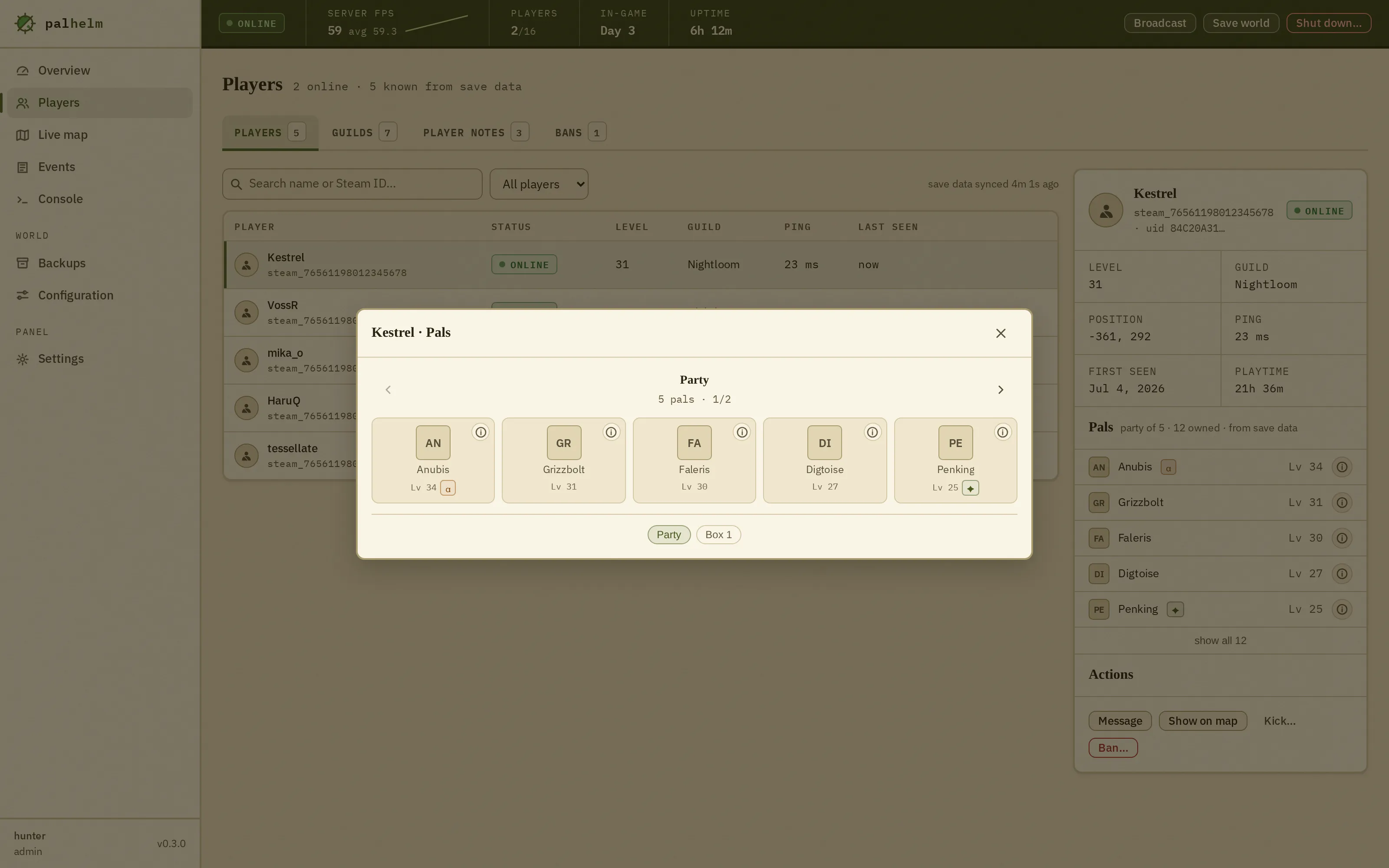
The players screen: a merged table of online and offline players with levels, guilds and status, and a detail panel showing one player's pal party, with placeholder chips standing in for pal art.The players screen: a merged table of online and offline players with levels, guilds and status, and a detail panel showing one player's pal party, with placeholder chips standing in for pal art.
FIG. 03Playersonline and offline, merged from the live server and the save

SCREEN 02 · PLAYERS

Everyone who ever logged in.

Online players come from the live server, everyone else from the save file. See each player's level, playtime, guild and pal party, with their Steam avatar. Kick, ban or whitelist from the same screen.

Shown with demo data; pal art appears once icons are fetched.

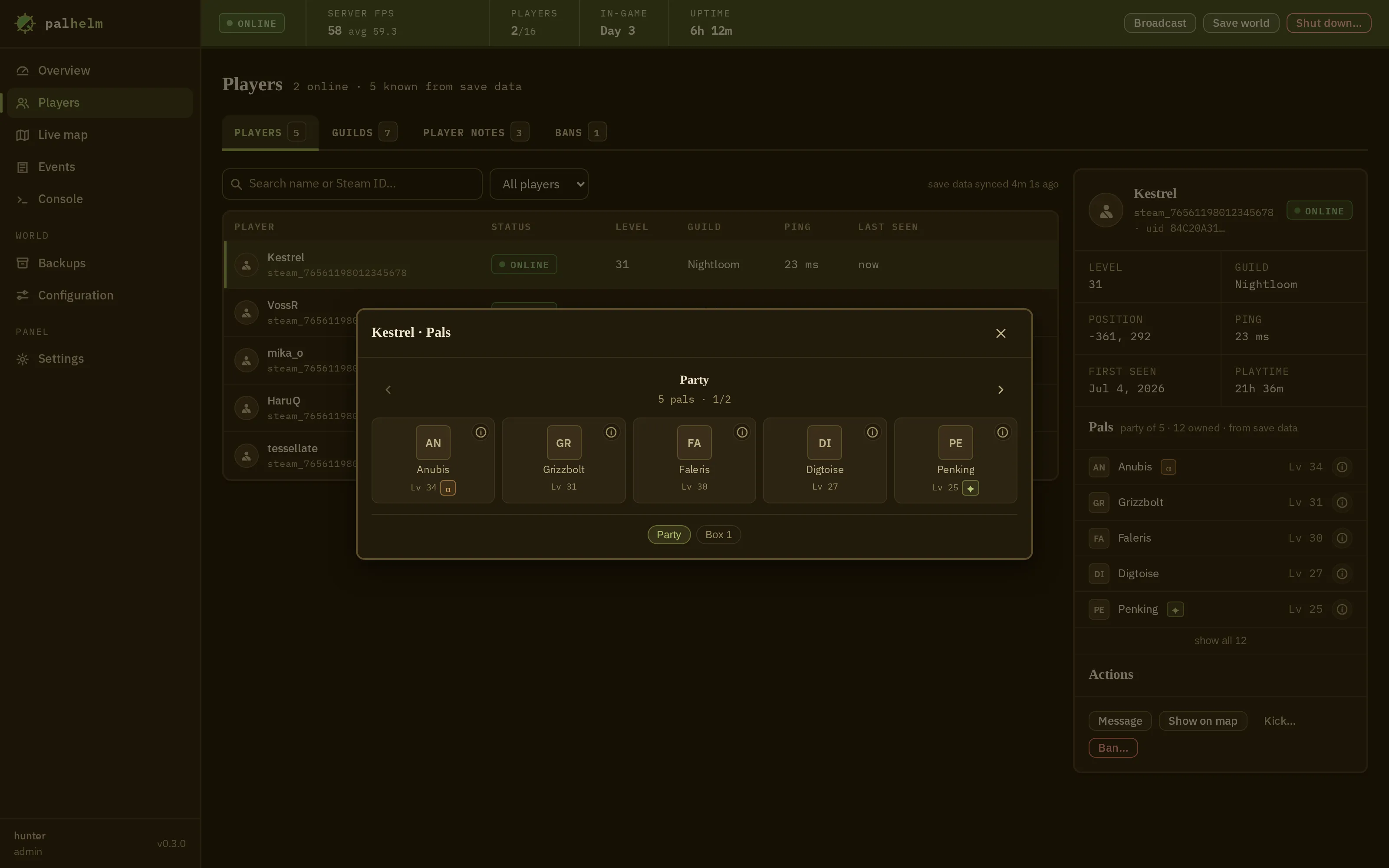
The pal box dialog: a five-slot party page and numbered thirty-slot storage pages laid out as a grid of cells, with empty cells drawn in and placeholder chips standing in for pal art, shown with demo data.The pal box dialog: a five-slot party page and numbered thirty-slot storage pages laid out as a grid of cells, with empty cells drawn in and placeholder chips standing in for pal art, shown with demo data.
FIG. 04The pal boxparty page, numbered box pages, a catch-all for pals away

SCREEN 03 · PAL BOX

The pal box, page by page.

Open any player's storage and see their party and boxes laid out like in the game: the five-slot party, numbered box pages with the empty cells drawn in, and a catch-all for pals out at a base or otherwise away.

Shown with demo data; species art appears once icons are fetched.

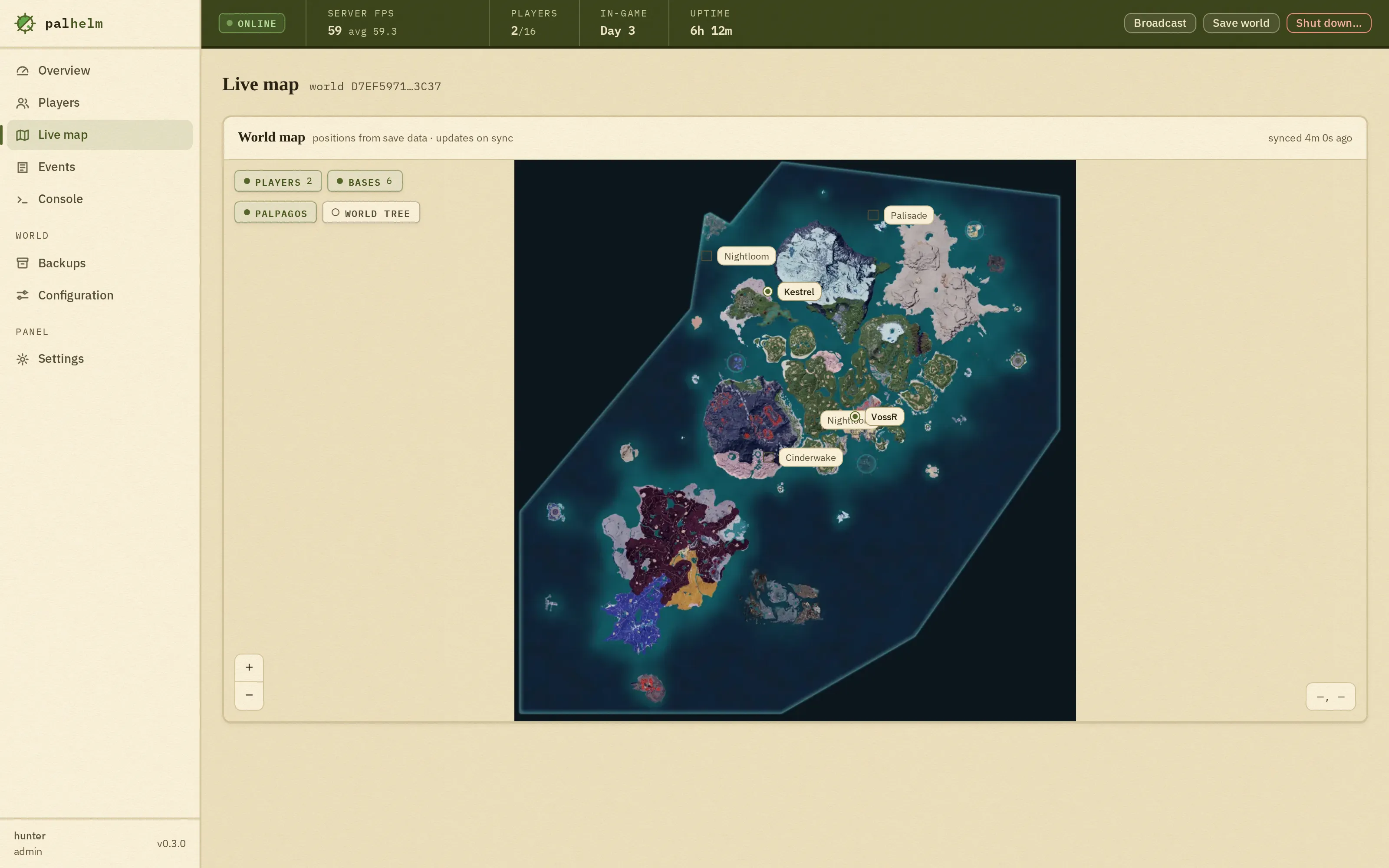
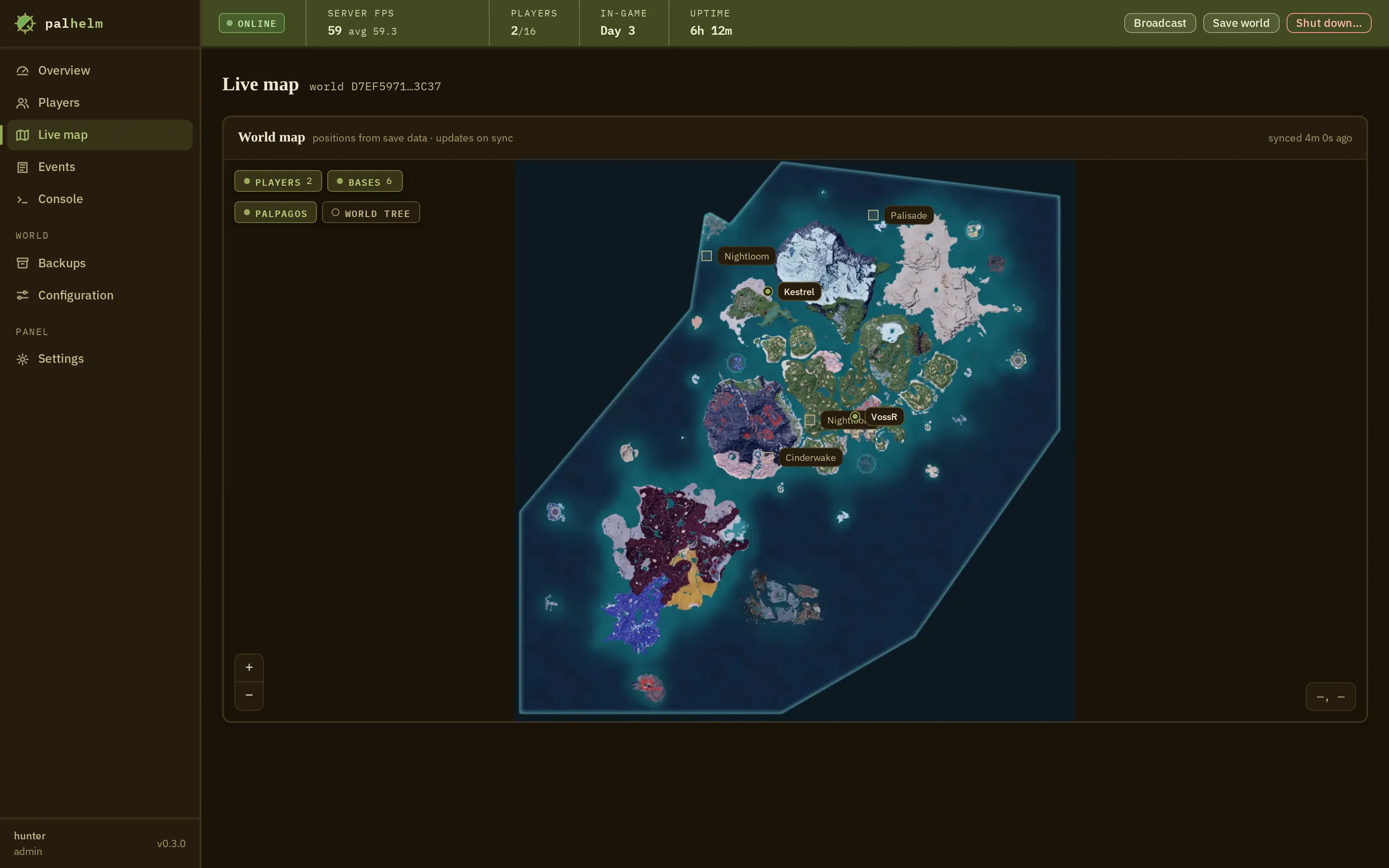
The live map screen showing the Palpagos Islands with player and base markers overlaid, and a layer control for the World Tree.The live map screen showing the Palpagos Islands with player and base markers overlaid, and a layer control for the World Tree.
FIG. 05Live mapPalpagos + World Tree layers · tiles fetched, never shippedMAP DATA: PRE-1.0

SCREEN 04 · MAP

The world map, live.

Palpagos and the World Tree, with players and bases marked where they really are. Map tiles aren't bundled; you fetch them once with an included script, and until they are refreshed the map wears a MAP DATA: PRE-1.0 stamp so you know what you're seeing.

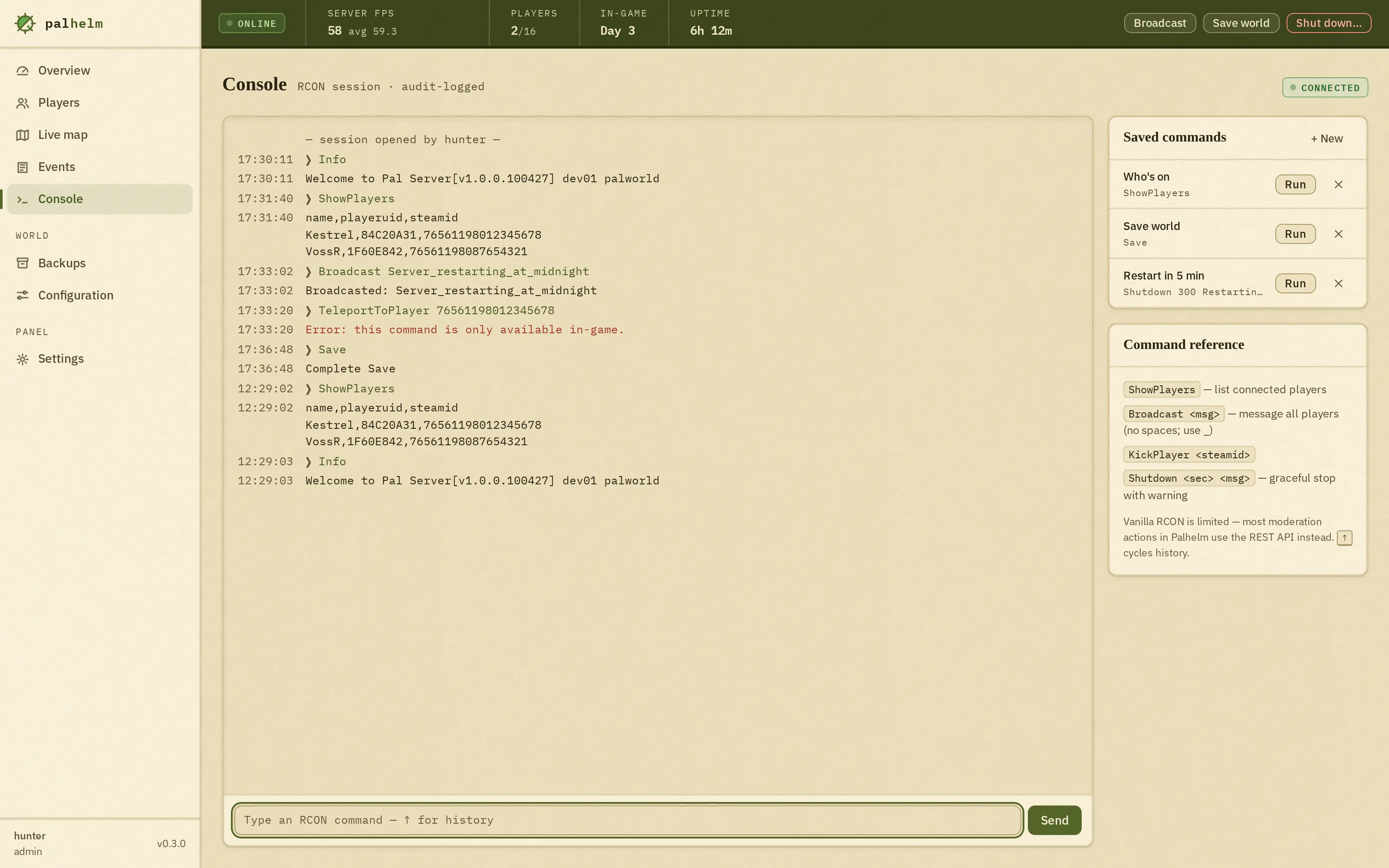
The remote console screen: a scrolling command log, an input line, saved commands, and inline notes about the limits of the game's console.The remote console screen: a scrolling command log, an input line, saved commands, and inline notes about the limits of the game's console.
FIG. 06Consolea real remote console, honest about its limits

SCREEN 05 · CONSOLE

A built-in server console.

A real remote console with history and saved commands. Where the game's console has quirks, Palhelm says so right next to the input instead of letting you find out the hard way.

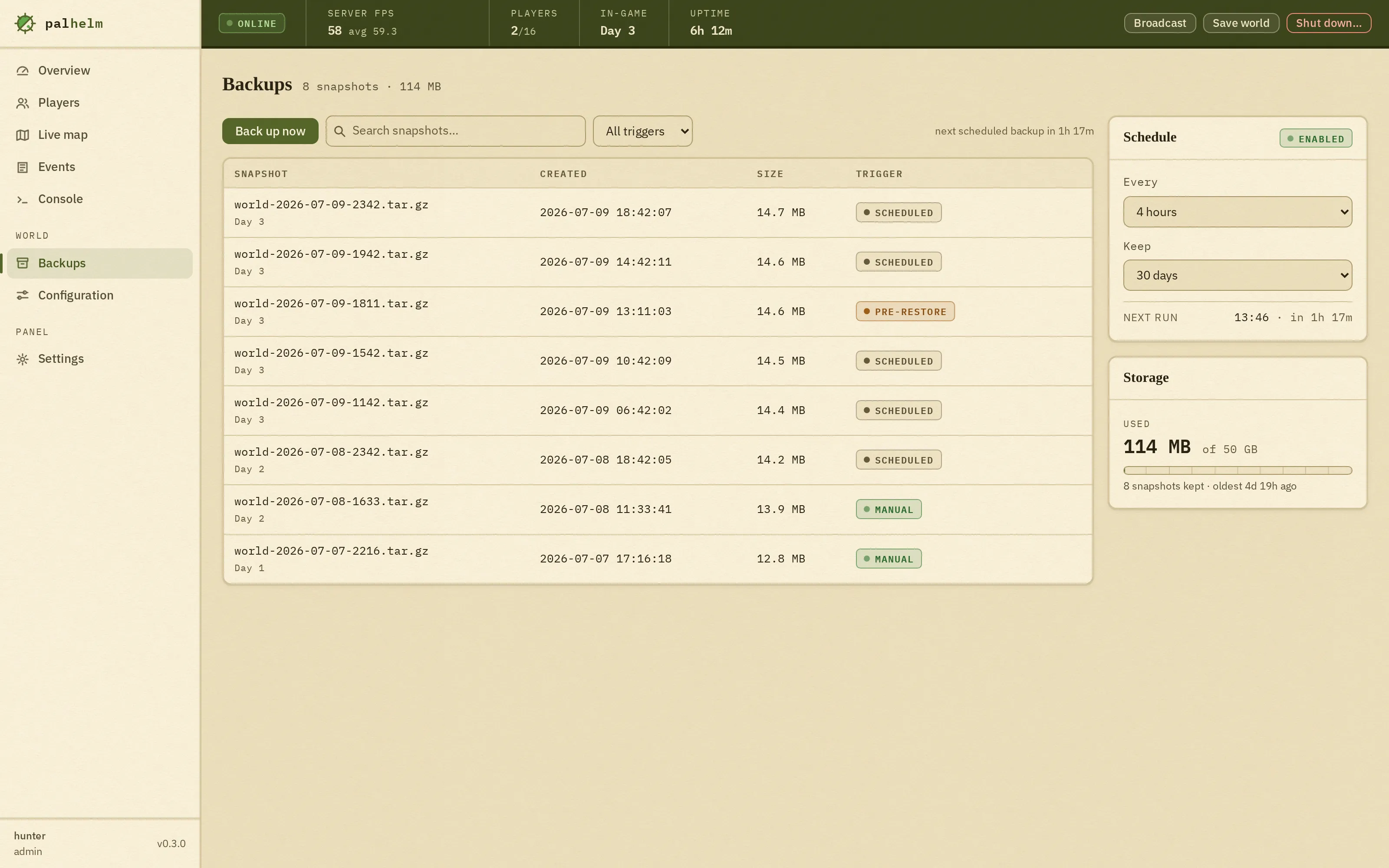
The backups screen: a list of snapshots with sizes and timestamps, retention settings, and a restore action guarded by a dry-run diff and a typed confirmation.The backups screen: a list of snapshots with sizes and timestamps, retention settings, and a restore action guarded by a dry-run diff and a typed confirmation.
FIG. 07Backupsscheduled + manual snapshots · restore behind a dry-run diffDRY-RUN FIRST

SCREEN 06 · BACKUPS

Restores with a safety net.

Scheduled and manual snapshots, with browsing. A restore shows you the exact changes first, asks you to type RESTORE, and takes a safety backup before it starts.

A full restore is: stop the server, restore, start it again. Palhelm handles the middle step and refuses to run while the server is up. Snapshots live in Palhelm's own data folder, not inside your world.

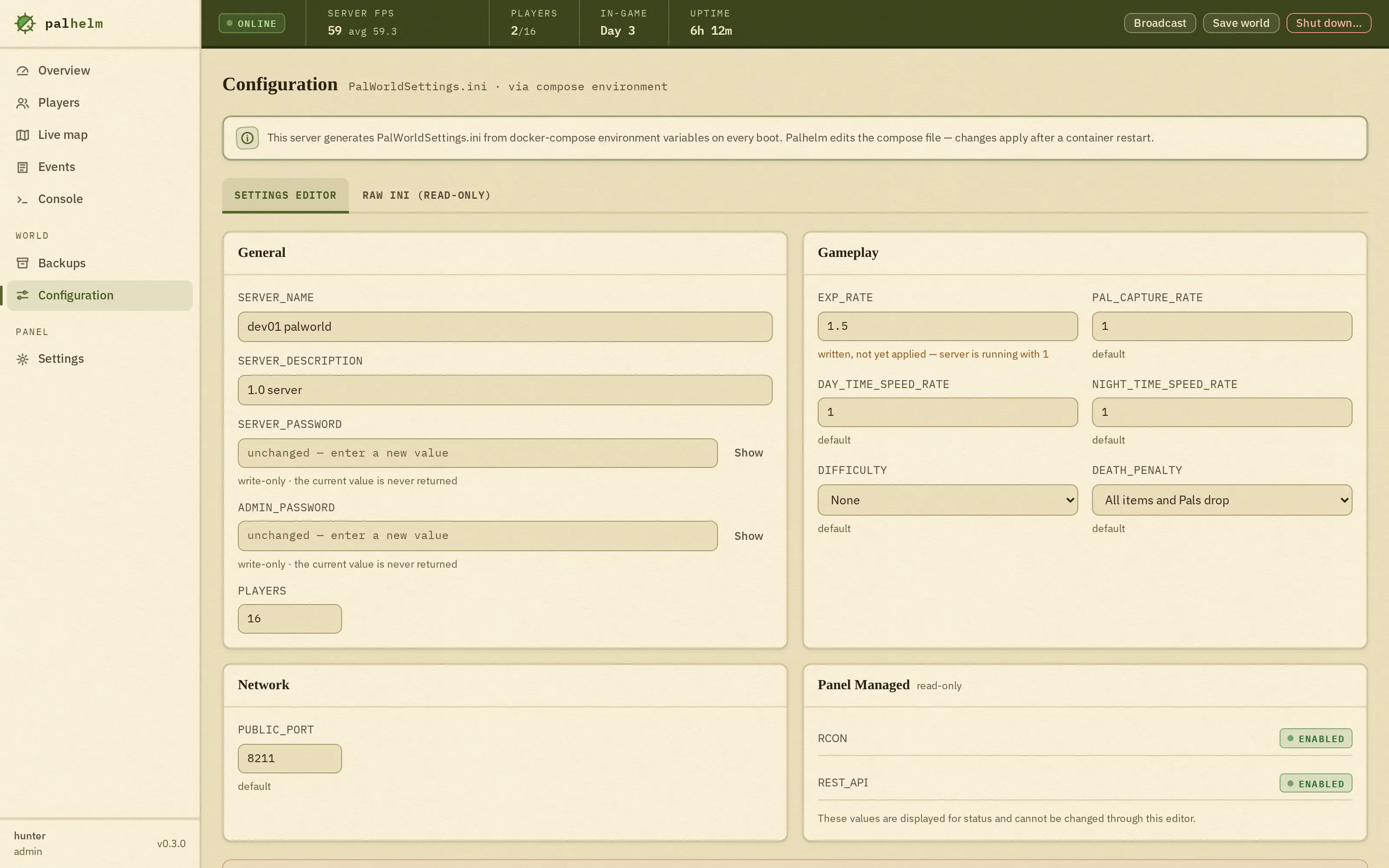
The config editor: server settings each showing a pending value next to the live value, and the exact command to apply the change printed below.The config editor: server settings each showing a pending value next to the live value, and the exact command to apply the change printed below.
FIG. 08Config editoredits the real settings source, shows pending vs. live

SCREEN 07 · CONFIG

Config edits that stick.

Most editors write settings that the server quietly overwrites on the next boot. Palhelm edits the place your settings actually come from, with your comments and ordering kept.

It shows what is live next to what is pending, and prints the exact command to apply. Applying is left to you, on purpose.

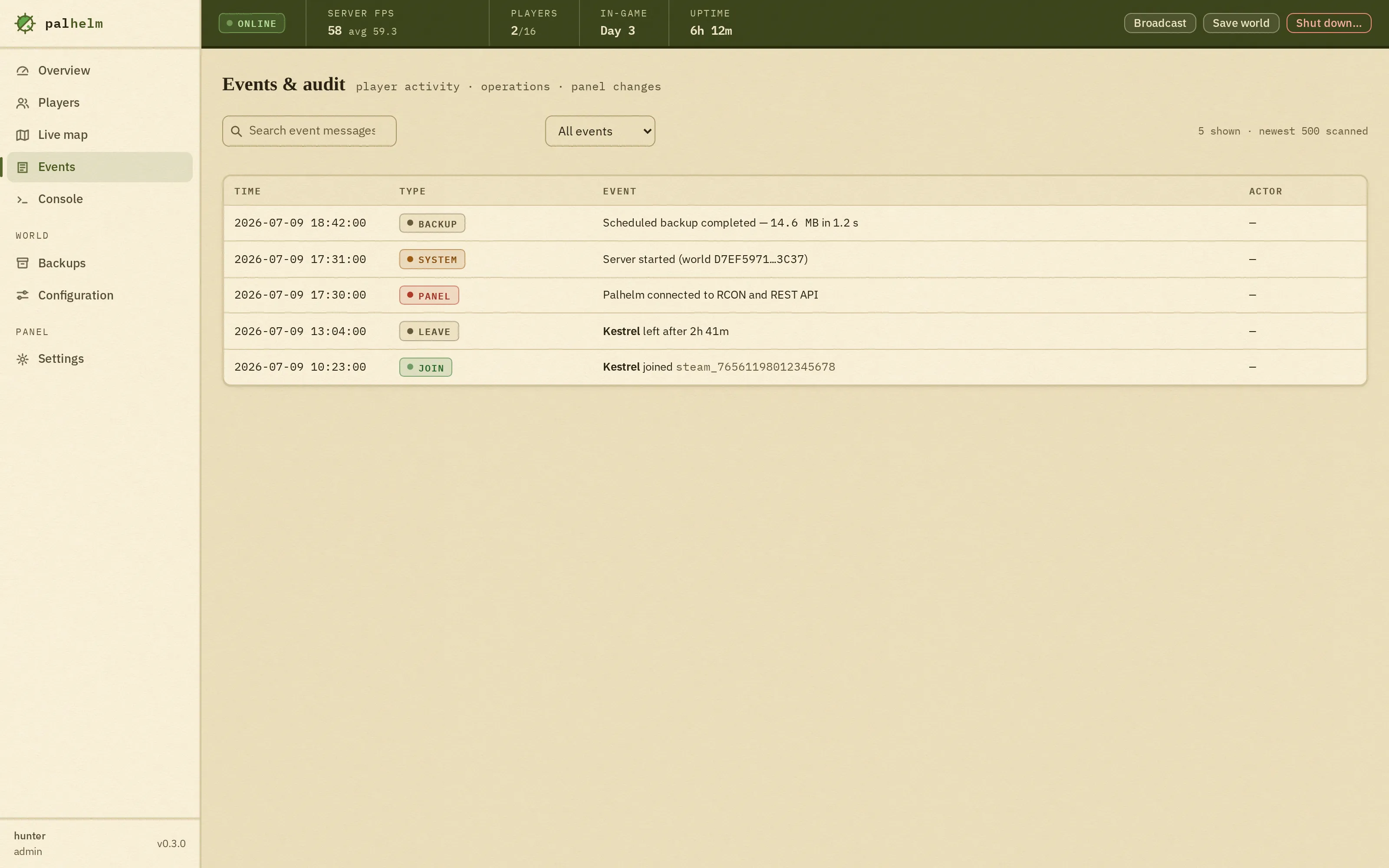
The events and audit screen: a searchable, type-filterable table of timestamped events. Joins, leaves with session durations, backups, server starts and panel connections, each tagged JOIN, LEAVE, BACKUP, SYSTEM or PANEL.The events and audit screen: a searchable, type-filterable table of timestamped events. Joins, leaves with session durations, backups, server starts and panel connections, each tagged JOIN, LEAVE, BACKUP, SYSTEM or PANEL.
FIG. 10Events & auditplayer activity · operations · panel changes

SCREEN 08 · EVENTS

One log for everything.

Joins and leaves with session lengths, backups, server starts and panel connections. One searchable feed.

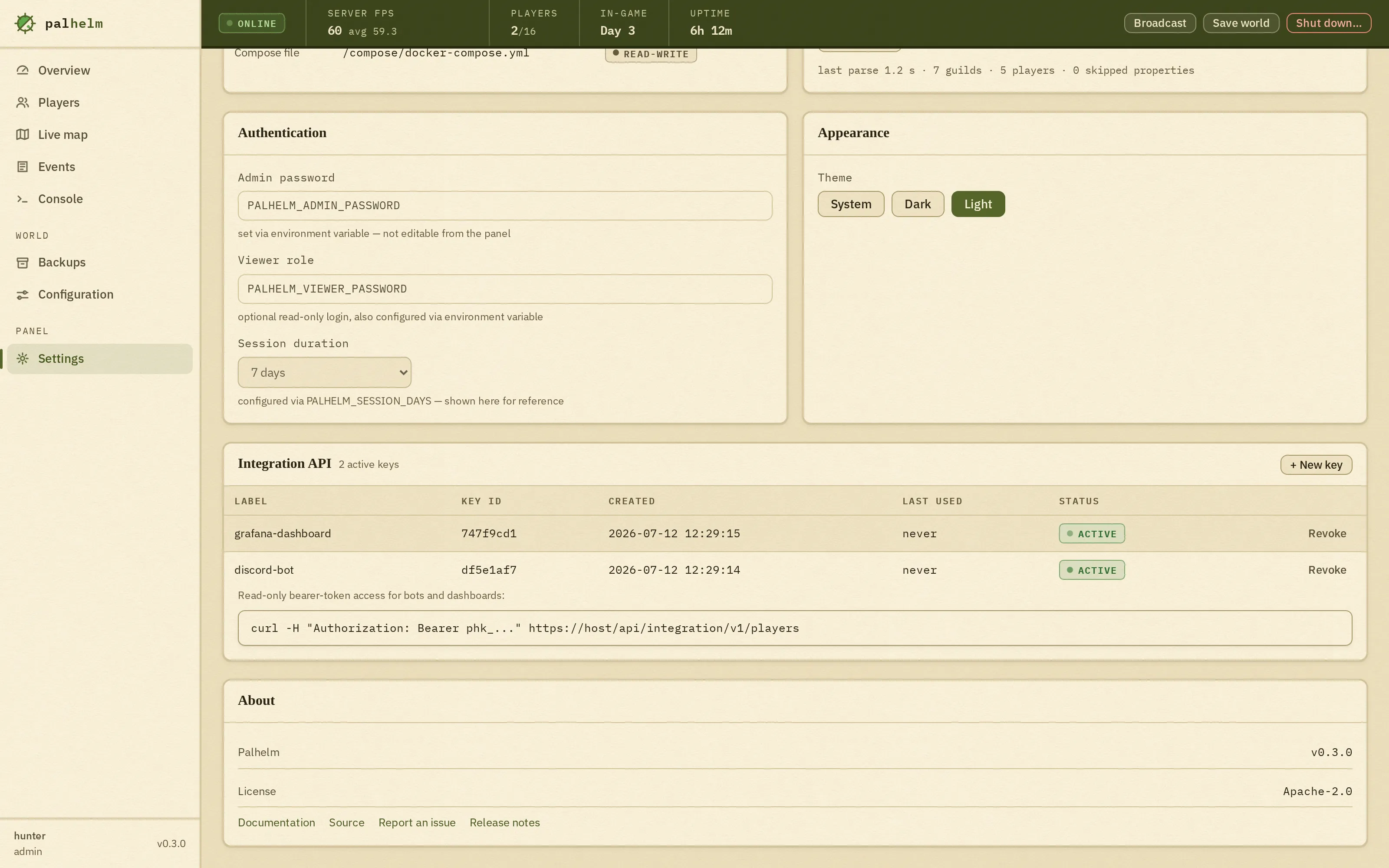
The settings screen: authentication values set through environment variables and shown for reference, an appearance theme switch for system, dark or light, and an Integration API panel listing active keys with created dates, status and a revoke action.The settings screen: authentication values set through environment variables and shown for reference, an appearance theme switch for system, dark or light, and an Integration API panel listing active keys with created dates, status and a revoke action.
FIG. 11Settingstheme · integration keys · minted once, revoked instantly

SCREEN 09 · SETTINGS

Keys and appearance.

Pick your theme, and create or revoke the read-only API keys your bots and dashboards use. Each key is shown once, and revoking takes effect immediately.

The admin and viewer passwords are shown here for reference only. They're set outside the panel and can't be changed from it.

FOR YOUR SCRIPTS

A read-only API for your own tools.

Everything the panel shows, your tools can read. Create a key in Settings and point a bot, a dashboard or a script at the read-only API. What comes back is safe to share, even in a public Discord channel.

Full details are in the docs.

TERMINAL · a read-only key in action
$ curl -s https://panel.example/api/integration/v1/players \ -H "Authorization: Bearer phk_1a2b3c4d_…"[ { "uid": "a1b2c3d4", "name": "Kestrel", "level": 42, "guild": "Skyward Company", "lastSeen": "2026-07-12T14:03:00Z" } ]# name, level, guild, last seen

BUILT WITH

One image, no surprises.

Under the hood: one program for the panel, one web UI, shipped as a single Docker image. Your data stays in one folder on the host. No separate database to install or run. Full details are inthe docs.